Getting started
Potluck runs in your browser, on your phone and on your computer. There is nothing to download first, and it costs nothing.
Create an account
Section titled “Create an account”-
Open Potluck and tap Get started.
-
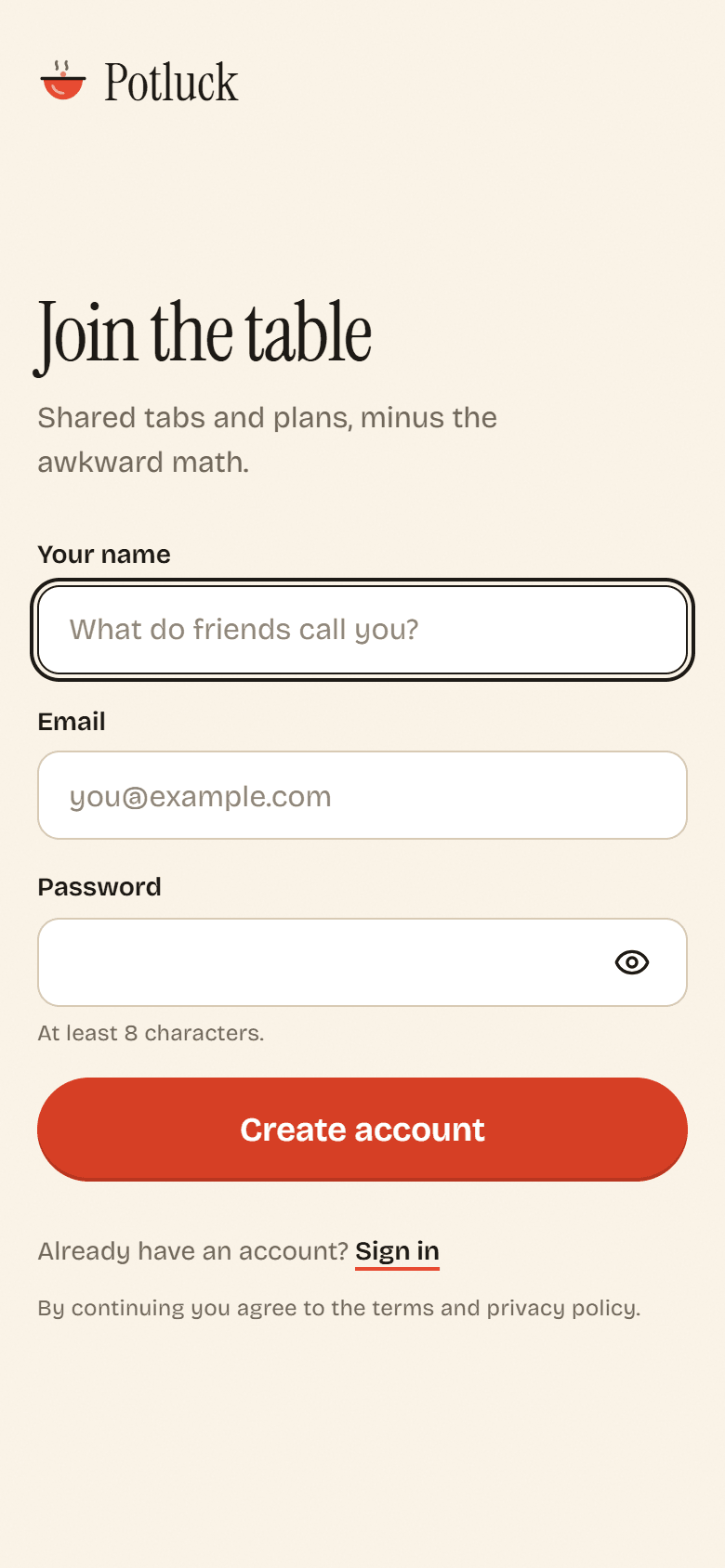
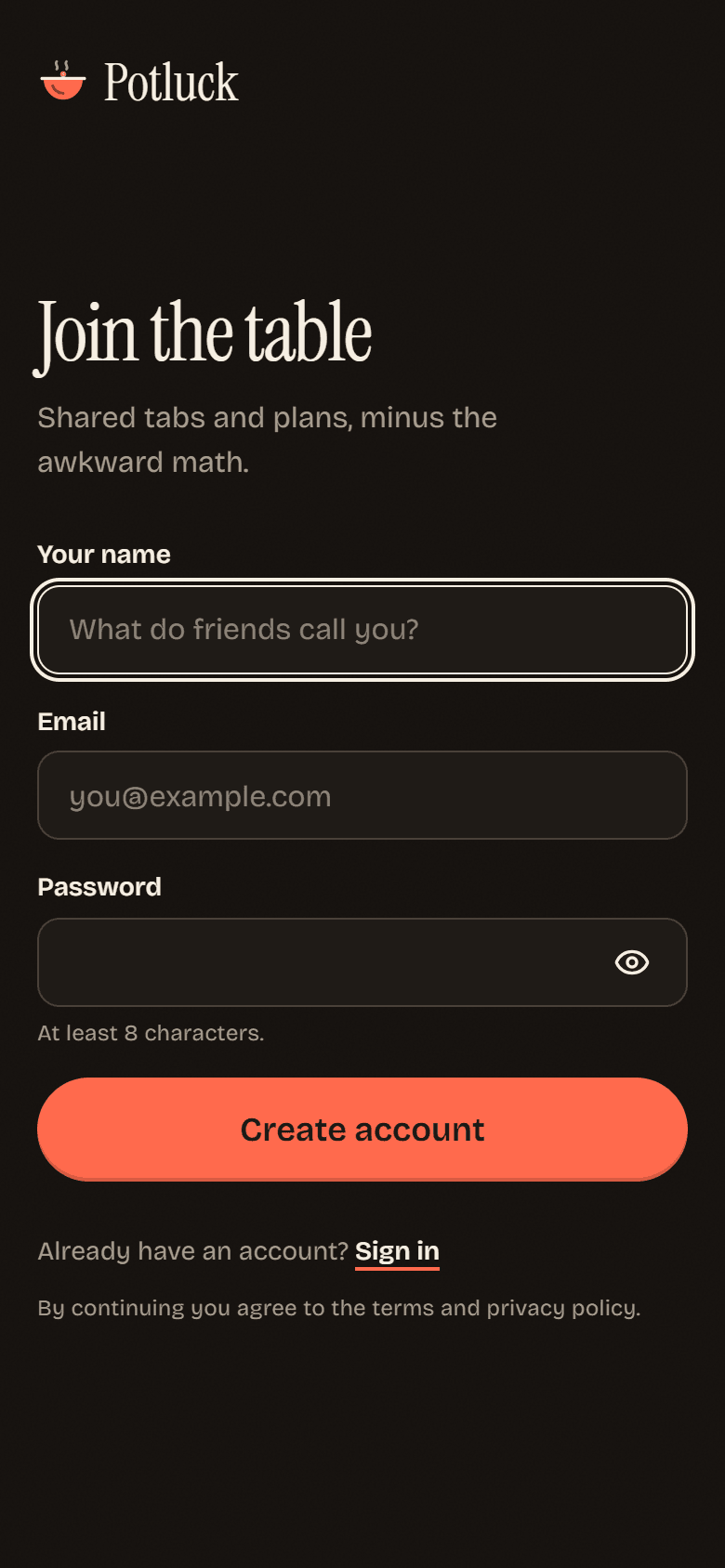
On Join the table, fill in Your name, Email and Password. The password needs at least 8 characters.
-
Tap Create account. If Potluck asks you to confirm your email, open the link it sends you.
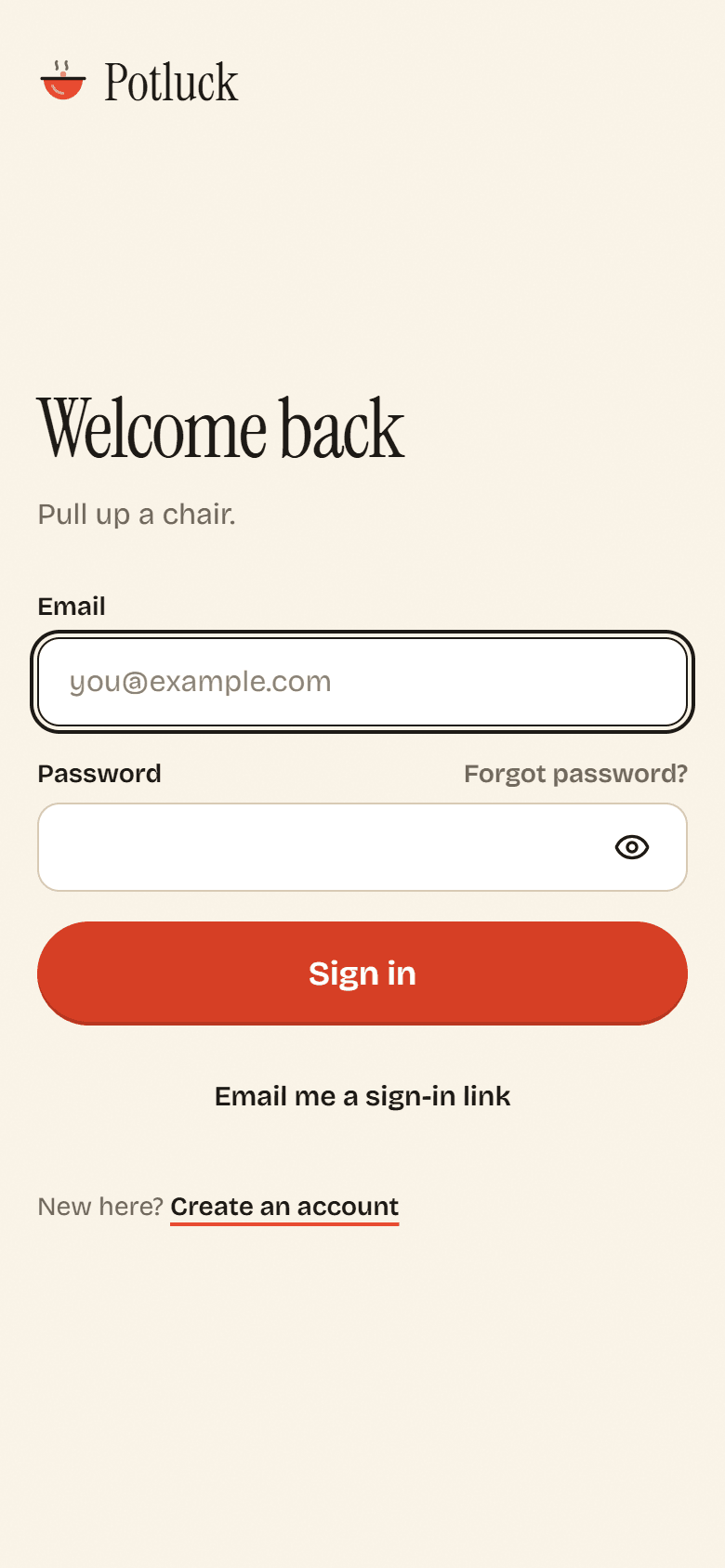
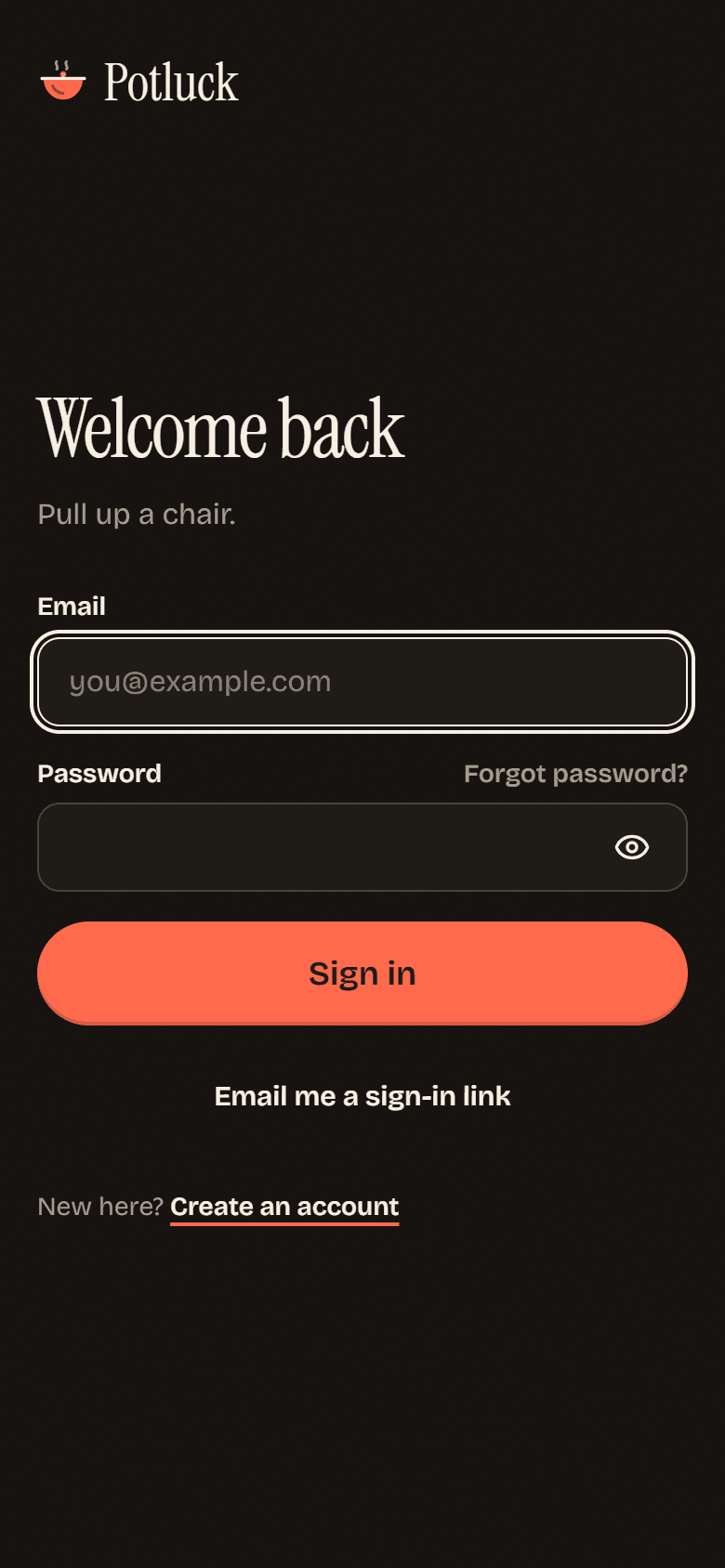
Already have an account? Tap Sign in instead. You can type your password, or tap Email me a sign-in link and sign in from your inbox without one.
Set up your profile
Section titled “Set up your profile”The first time you sign in, Potluck asks two quick things.
-
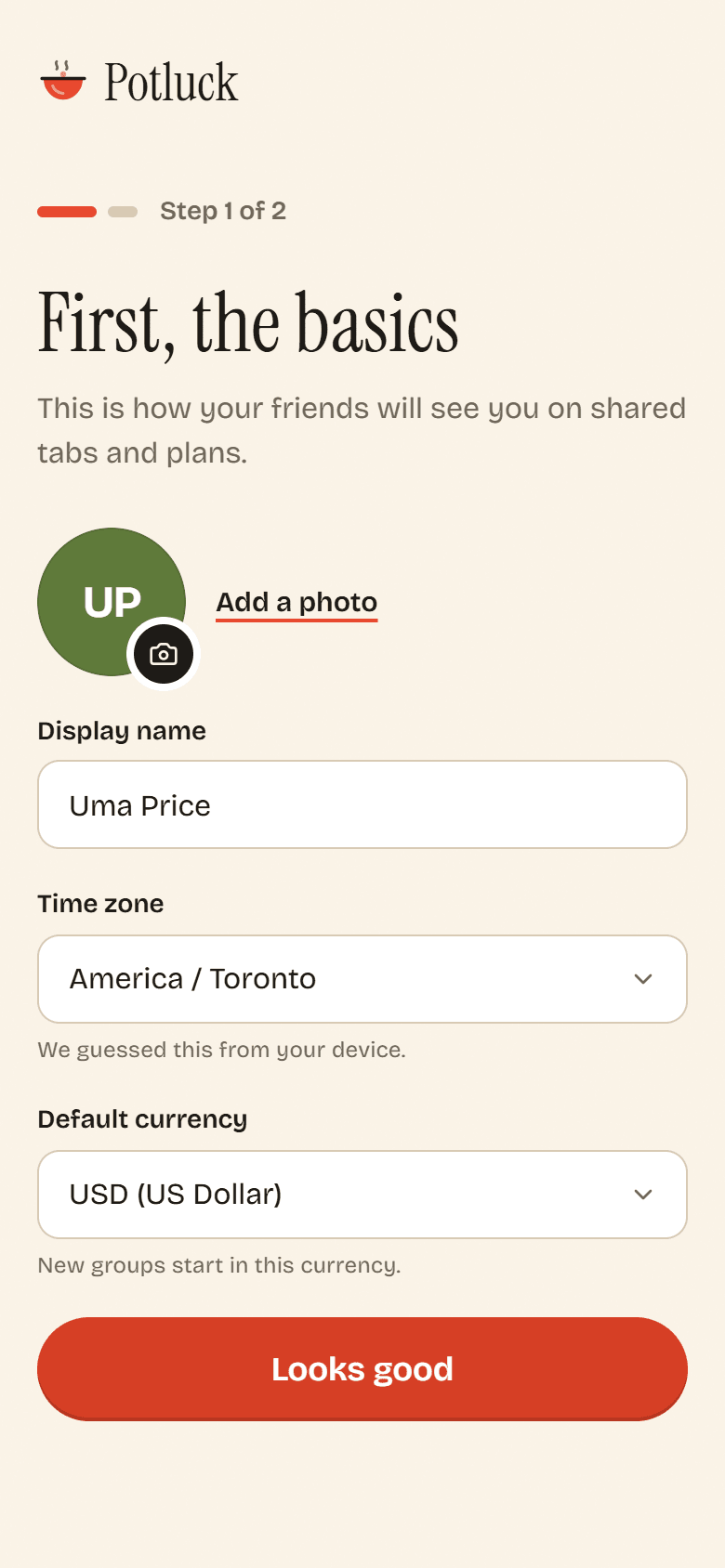
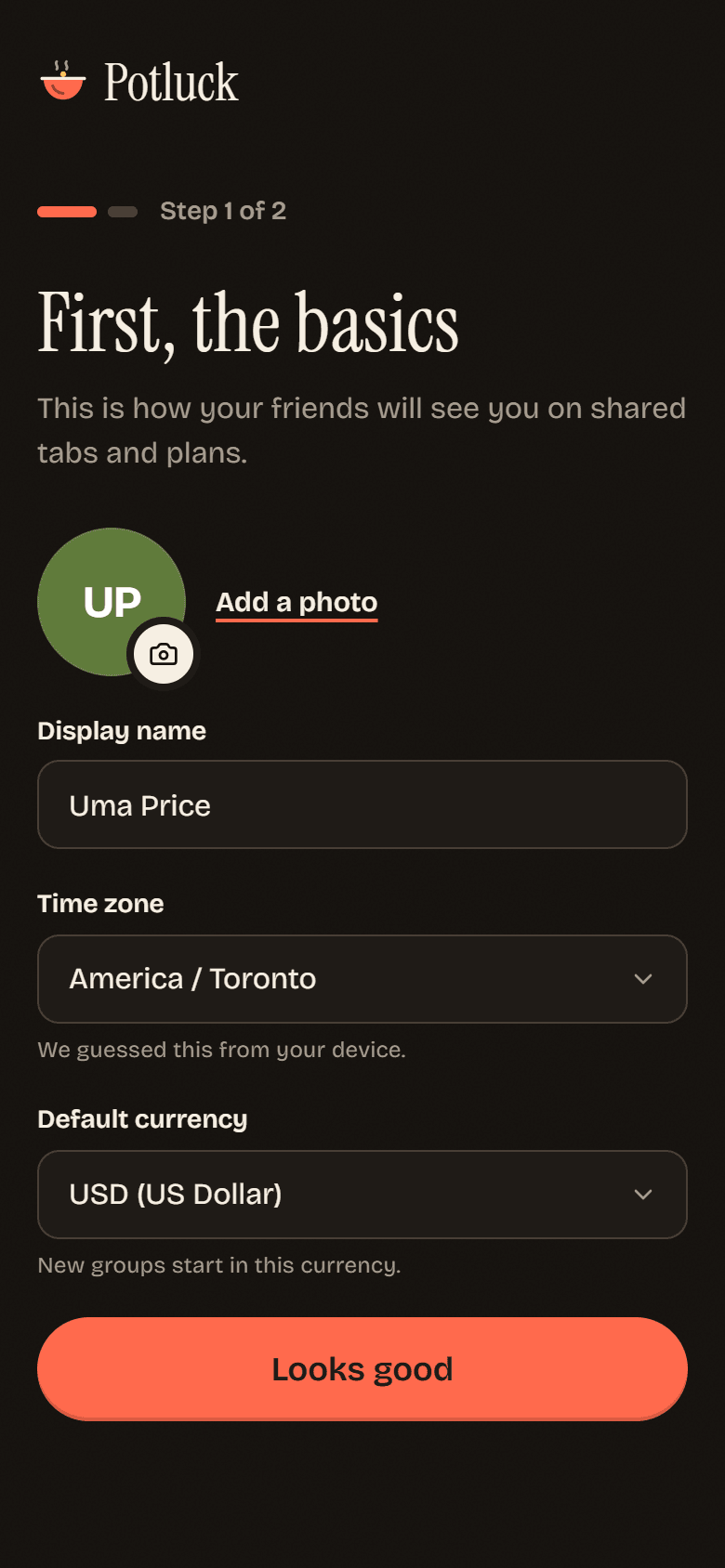
First, the basics. Add a photo if you like (PNG, JPG, WebP or GIF, up to 5 MB), check your Display name, and confirm your Time zone and Default currency. Potluck guesses the time zone from your device. New groups you create start in your default currency.
-
Tap Looks good.
-
Start a group. Pick Create a group, or I have an invite link to paste a link someone sent you. Maybe later takes you straight to Home.
You can change all of this later on the Me page.
Install Potluck as an app
Section titled “Install Potluck as an app”Potluck is a web app you can add to your home screen. It then opens full screen, without the browser bars, and it can send push notifications.
iPhone and iPad
Section titled “iPhone and iPad”- Open Potluck in Safari.
- Tap the Share button.
- Scroll down and tap Add to Home Screen, then Add.
Android
Section titled “Android”- Open Potluck in Chrome.
- Tap the three-dot menu.
- Tap Install app (on some phones it says Add to Home screen).
Computer
Section titled “Computer”In Chrome or Edge, click the install icon at the right end of the address bar, then Install. Potluck gets its own window and a spot in your dock or Start menu.
On Android and on a computer, right-click or long-press the installed icon to jump straight to Add expense or Plan something.
A tour of Home
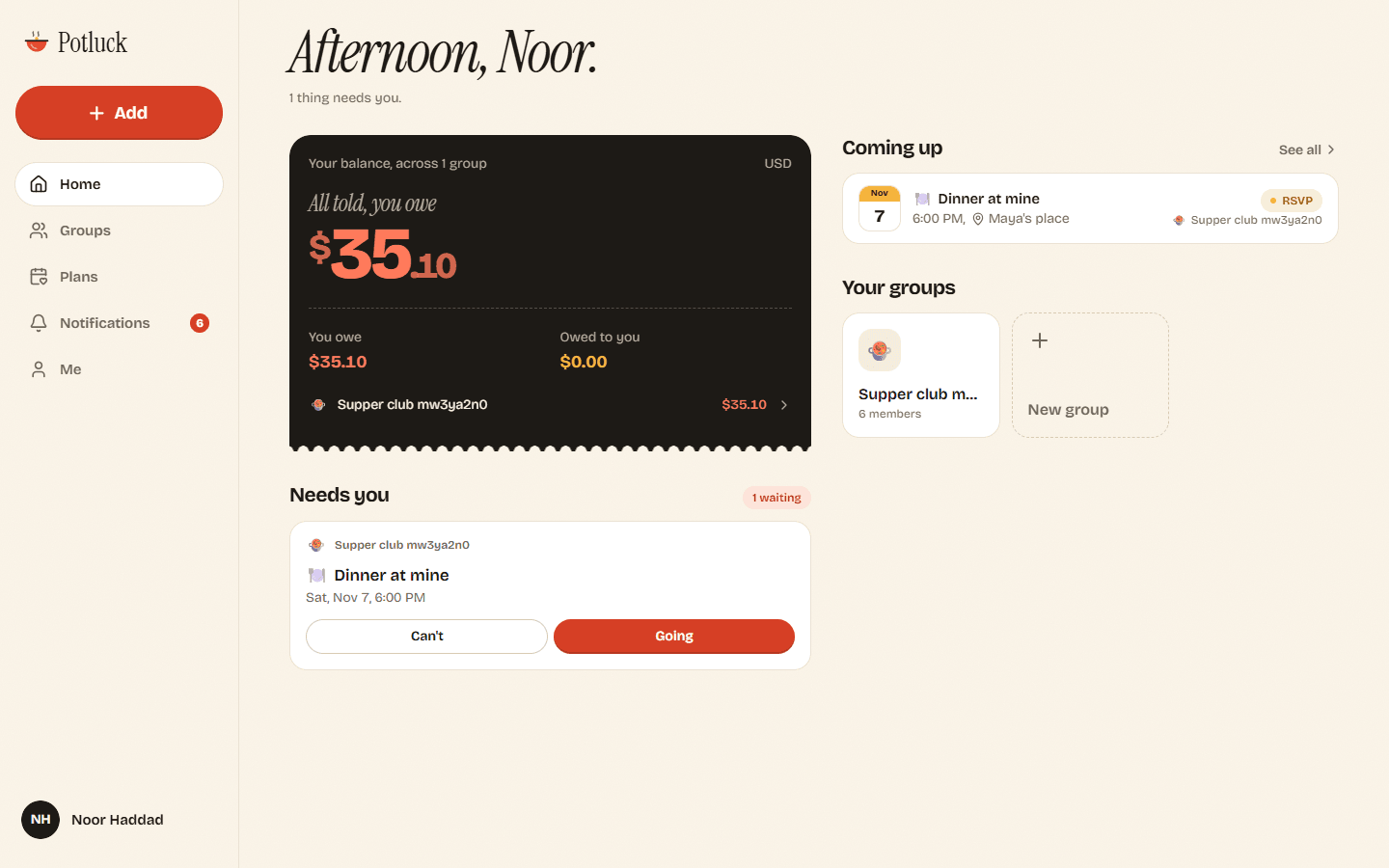
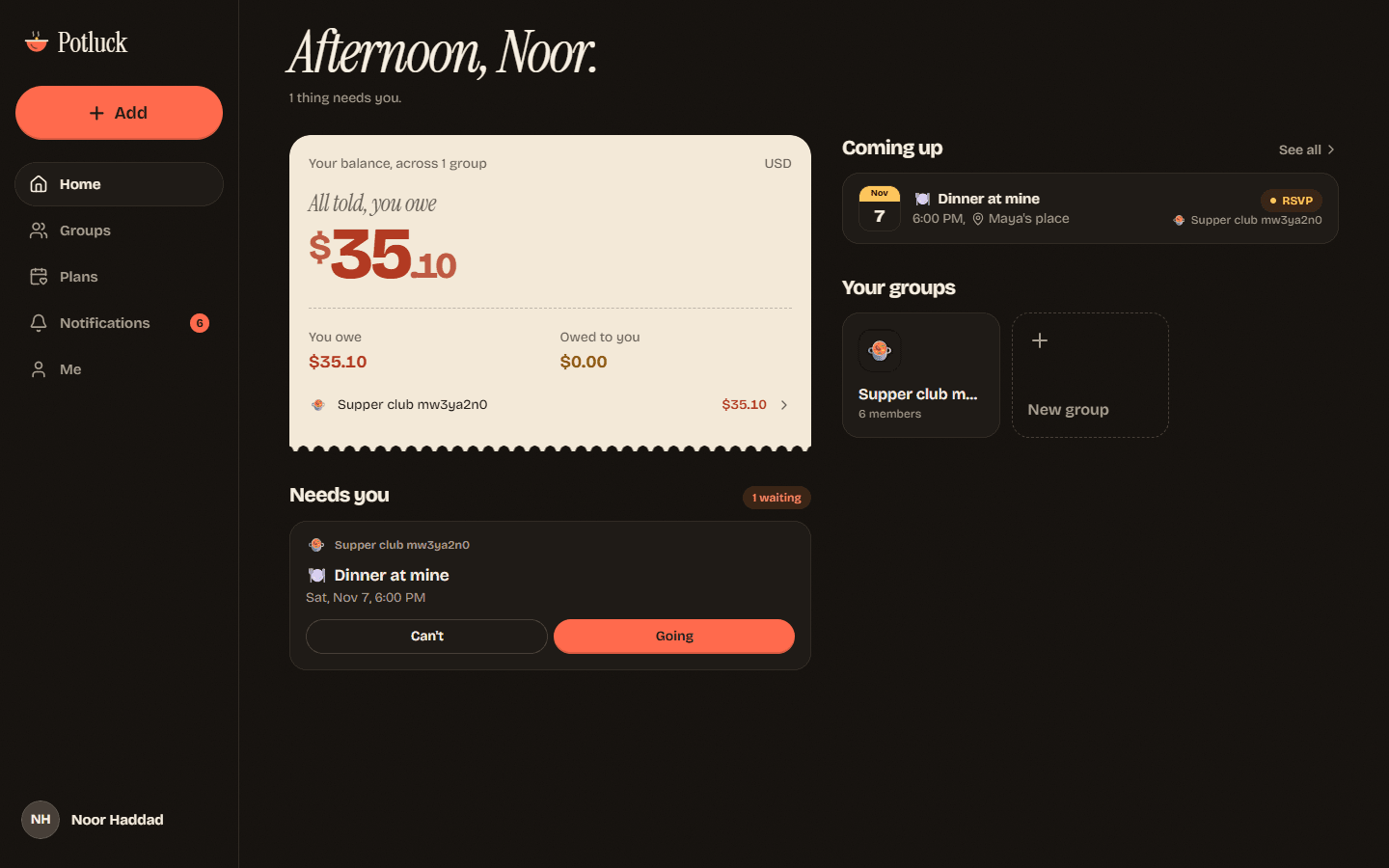
Section titled “A tour of Home”Home is where Potluck tells you what needs you right now.
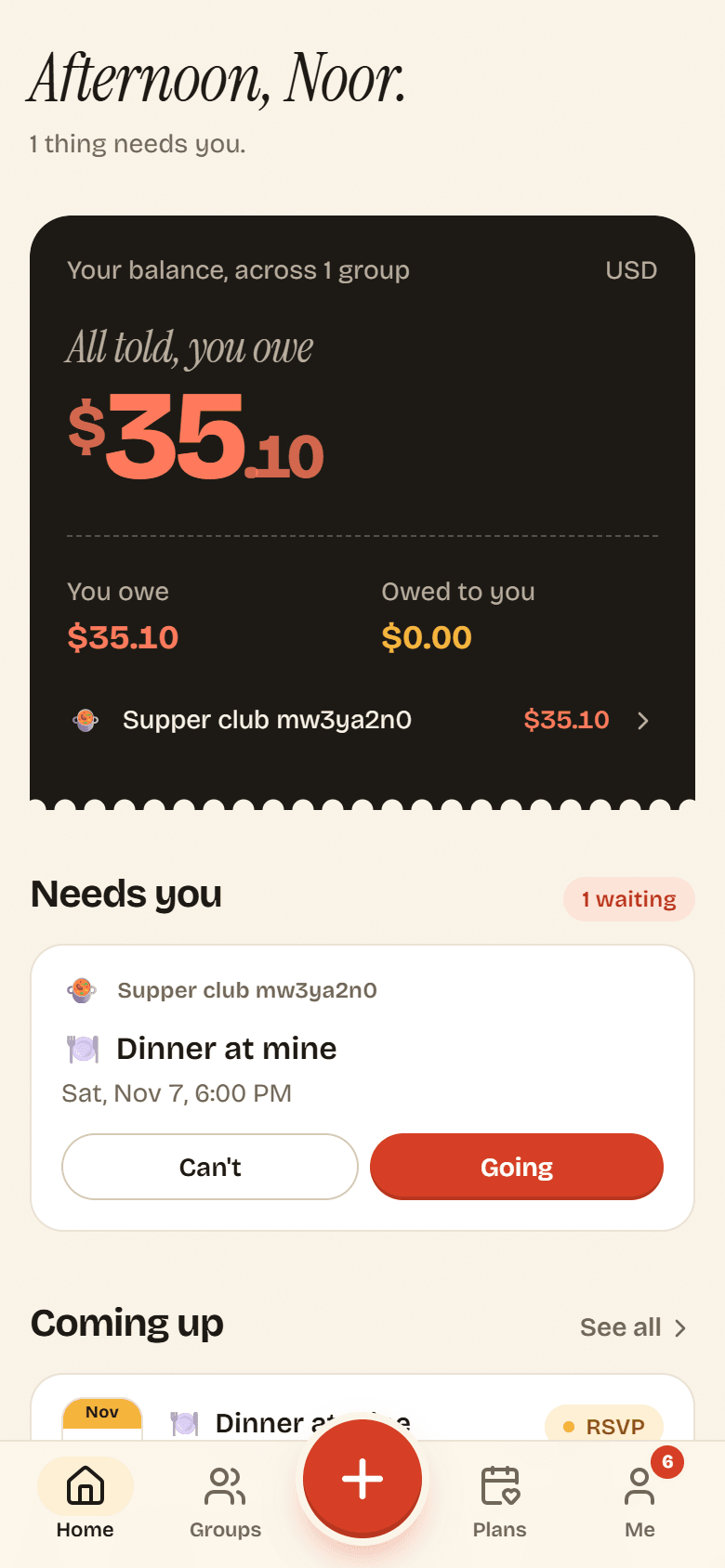
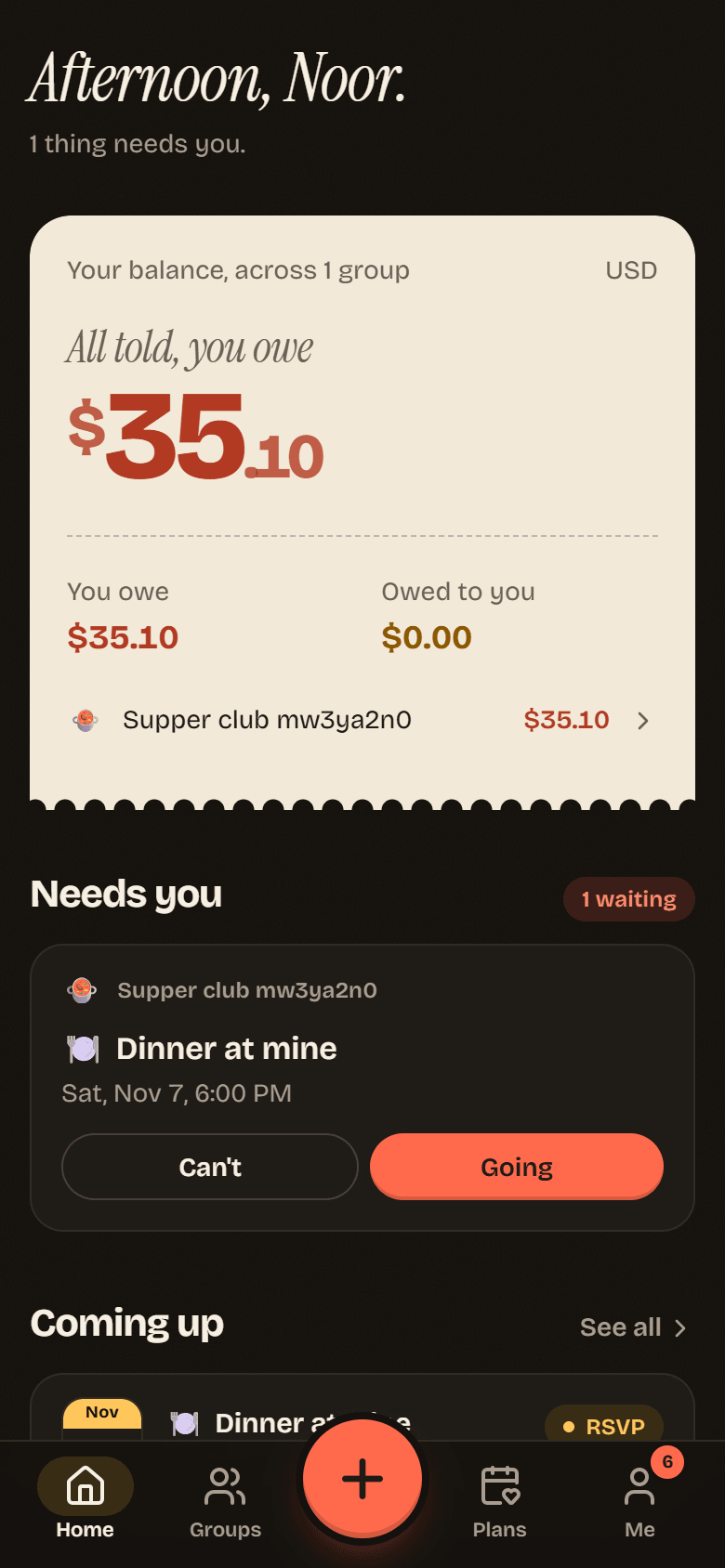
- The greeting says how many things need you.
- Your balance adds up every group in your default currency: All told, you owe or All told, you are owed, with You owe and Owed to you underneath and one line per group. Tap a group to open it. Groups in other currencies show up as Plus balances in that currency.
- Needs you lists plans waiting on you: polls where you have not added your times yet, and plans where you have not said whether you are going.
- Coming up shows plans that are on the calendar. See all opens Plans.
- Your groups lists your groups, with a shortcut to a New group.
Getting around
Section titled “Getting around”On a phone, the tab bar at the bottom has Home, Groups, Plans and Me. The big plus button in the middle opens What are we doing? with three shortcuts: Add expense, Plan something and Settle up.
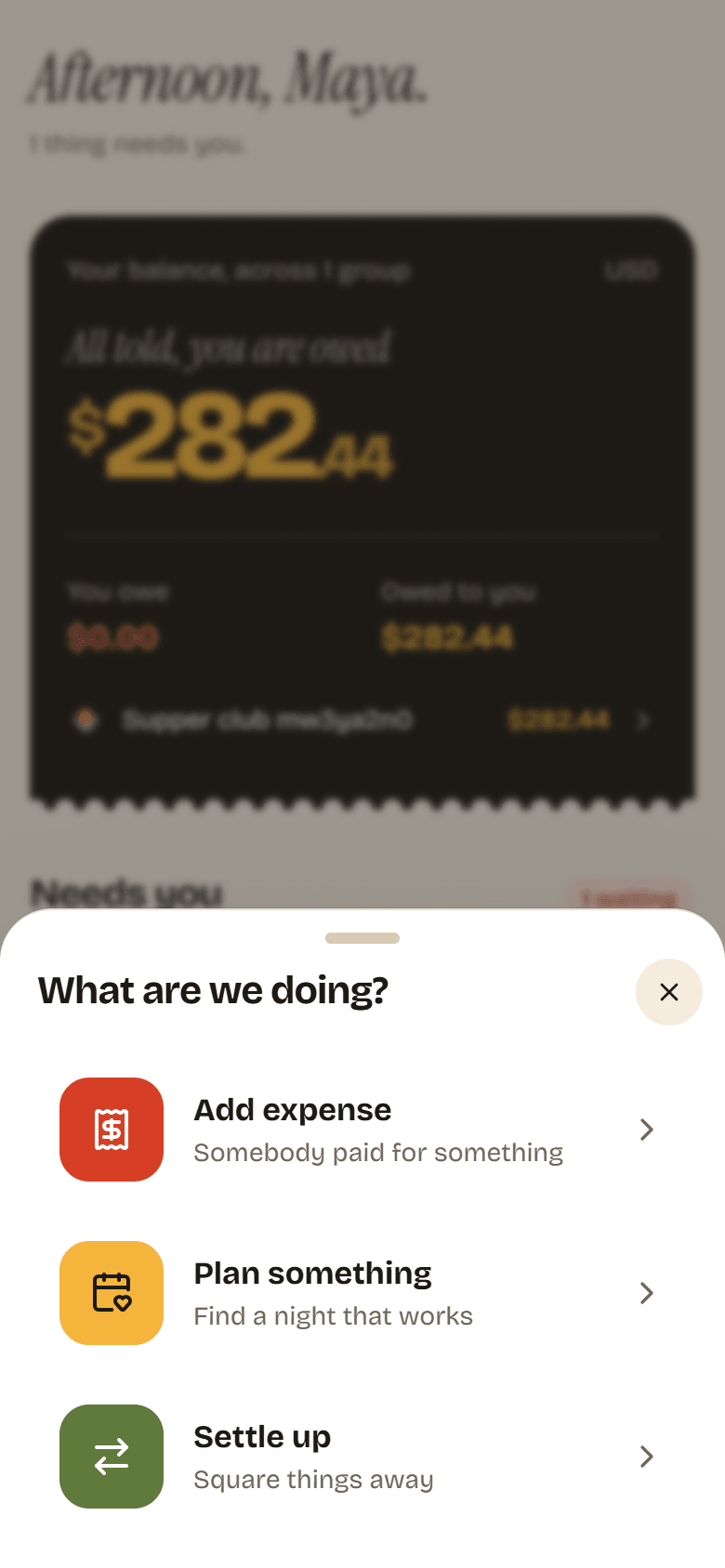
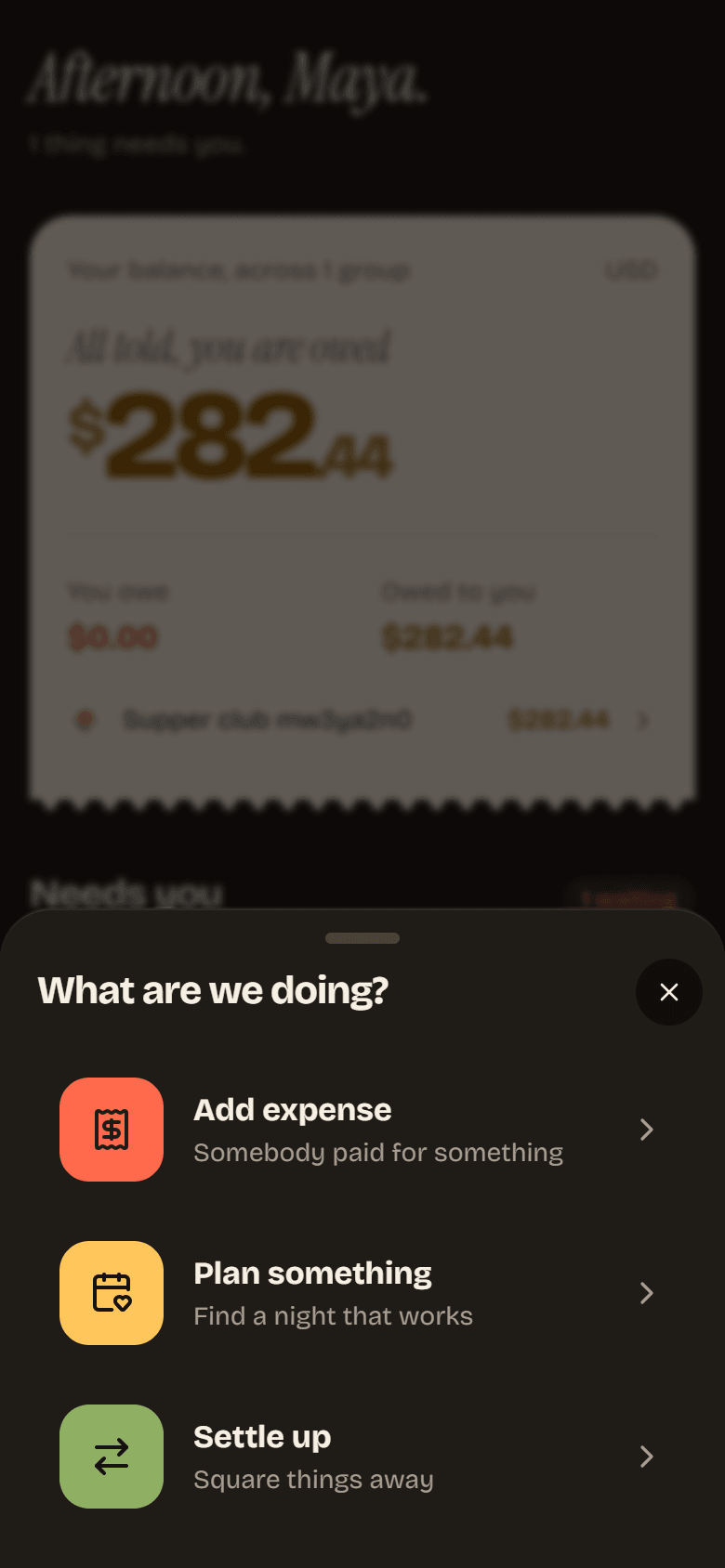
On a computer, the same places sit in a rail on the left, with an Add button at the top and Notifications as its own item. On a phone, unread notifications show as a badge on Me.
Next: start a group.